As an Amazon Associate this site earns from qualifying purchases.
Quick Picks
| Frame | Screen | Storage | Sharing method | Link |
|---|---|---|---|---|
| BIGASUO Digital Picture Frame | 10.1", 1280x800 IPS touch ([S3]) | 32GB ([S3]) | Frameo app from phone ([S3]) | Check Price on Amazon |
| Dragon Touch Digital Picture Frame | 10.1" touch screen ([S4]) | Not published on the listing | Phone app or email ([S4]) | Check Price on Amazon |
| Brookstone PhotoShare 10.1” Smart Digital Picture Frame | 10.1" HD touchscreen ([S5]) | 8 GB, 5,000+ pics ([S5]) | Phone to frame, no fees ([S5]) | Check Price on Amazon |
Disclosure: We earn a small commission from qualifying Amazon purchases at no extra cost to you.
As an Amazon Associate we earn from qualifying purchases. This page contains affiliate links, and we may receive a commission if you buy through them — at no extra cost to you.
As an Amazon Associate, we earn from qualifying purchases.
Last Updated: September 2026
The short answer: to send photos to a digital picture frame from your phone, you install the frame maker's companion app (Frameo is the most common one), pair the app to the frame using a short code shown on the frame's screen, then pick photos from your camera roll and hit send. They arrive over Wi-Fi, usually within seconds, and the frame adds them to its rotation on its own. No cable, no computer, no memory card.
That is the whole trick. Everything below is about the parts people actually get stuck on: pairing a frame that lives 900 miles away, sending to a grandparent who will never open an app, and choosing a frame whose sharing method matches the family you are sharing with.
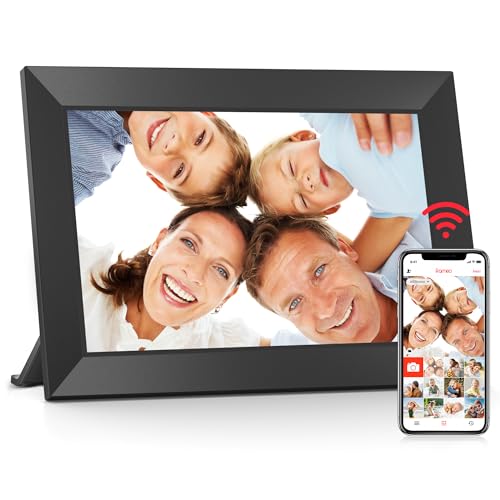
- [Frameo Digital Frame WiFi] Trusted by millions of users worldwide, Frameo offers a secure and private way to share memories. Powered by professional photo management technology
- [Quick Setup, Easy to Use] Designed with a user-friendly touchscreen, suitable for all ages. Setup takes only a few minutes. With the free Frameo app (available for iOS and
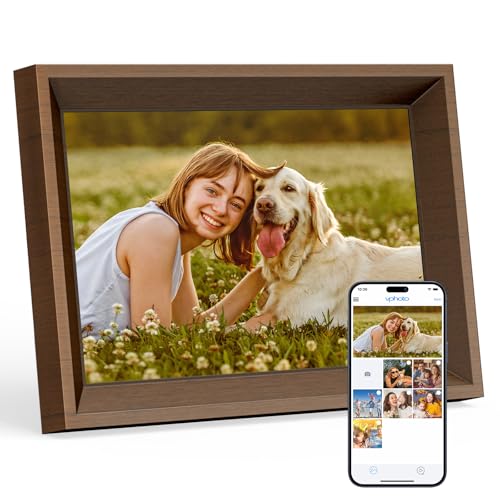
- 𝐈𝐍𝐒𝐓𝐀𝐍𝐓 𝐒𝐇𝐀𝐑𝐄 𝐘𝐎𝐔𝐑 𝐌𝐎𝐌𝐄𝐍𝐓𝐒: Display your favorite memories with the Dragon Touch Wi-Fi cloud digital picture frame. With instant sharing capabilities via
- 𝐇𝐈𝐆𝐇 𝐐𝐔𝐀𝐋𝐈𝐓𝐘 𝐃𝐈𝐒𝐏𝐋𝐀𝐘 𝐒𝐂𝐑𝐄𝐄𝐍: Experience vibrant details with a wall-mountable 10.1'' touch screen, featuring 1280*800 resolution and a 16:9 aspect ratio
The Problem: Three Different "Sending" Systems, One Word
Here's the thing. "Send photos to a digital frame" describes at least three unrelated mechanisms, and buying the wrong one is how people end up with a frame that never gets updated.
- App-to-frame over Wi-Fi. You and your relatives use a phone app tied to that frame. This is the Frameo model, and it is what most modern Wi-Fi frames use.
- Email-to-frame. The frame gets its own address. Anyone who can send an email attachment can add a photo, no app, no account.
- SD card or USB. You copy files from a computer or a phone-to-card reader and physically insert the card. No network involved at all.
Step-by-Step: Sending Photos Through a Frame App
This sequence covers Frameo-based frames and works the same way for most app-driven Wi-Fi frames.
- Power on the frame and connect it to Wi-Fi. Pick the 2.4 GHz network if your router shows both bands. Many frames do not join 5 GHz networks.
- Install the companion app on your phone. For a Frameo frame, that is the Frameo app. The BIGASUO Digital Picture Frame is described on its listing as a Frameo digital frame ([S3]).
- Tap the friend or pair icon on the frame. It generates a short pairing code that expires after a few minutes.
- Enter that code in the app. The frame now shows up as a destination in your app.
- Select photos from your camera roll, add an optional caption, and send. Captions are worth using — for an older recipient, "Maya's first day of school" turns an anonymous photo into a message.
- Repeat step 3 and 4 for every family member. Each person pairs their own phone to the same frame. This is the step people skip, and it is the difference between a frame that fills up with family life and a frame that only ever shows your photos.
Step-by-Step: Sending Photos by Email
- Find the frame's assigned email address in its settings menu.
- Attach photos to a normal email from your phone's mail app.
- Send. The frame pulls them down over Wi-Fi and adds them to the slideshow.
- Save the address as a contact on every family phone so nobody has to hunt for it.
Step-by-Step: Loading Photos From an SD Card
- Copy photos from your phone to a computer, or use a phone-compatible card reader.
- Format the card to FAT32 or exFAT if the frame does not recognize it.
- Resize very large files. A folder of 45-megapixel RAW-converted JPEGs will crawl on any frame.
- Insert the card and choose whether to play from the card or copy to internal storage.
Recommended Products
Three frames from the supplied data, each matched to a different sharing habit. All specifications below come from the retailer listings retrieved 2026-09-05; this website did not handle any of them.
Pricing changes constantly on all three, so check the current price on Amazon rather than trusting any number quoted elsewhere.
Tools and Products You'll Need
BIGASUO Digital Picture Frame — Best for families who want the standard Frameo app workflow with room for video
The reason to start here: the listing names both the platform and the capacity, which is exactly what you want to know before committing a whole family to one app. It is described as a 10.1" Frameo digital frame with 32GB of memory and a 1280x800 IPS touch screen, with photos and videos sent from your phone from anywhere ([S3]).
That 32GB figure ([S3]) is the practical argument for this frame. Video clips are what fill a frame's storage, and if your family sends short clips rather than stills, headroom stops being a spec-sheet curiosity. The 1280x800 IPS panel ([S3]) is a modest resolution in absolute terms, but IPS is the panel type that holds color when you view it off-axis — relevant for a frame sitting on a side table that people walk past rather than sit in front of.
Pros
- Frameo platform named explicitly on the listing ([S3]), so you know which app the family installs
- 32GB of memory ([S3]) — the largest of the three frames covered here
- Touch screen ([S3]) means the recipient can advance photos without a remote
- 1280x800 ([S3]) is well below the pixel density of the phone the photos came from, so fine detail in a landscape shot will be lost
- The listing does not state an email-to-frame option ([S3]), so a relative who refuses to install Frameo has no obvious route in
- No warranty length appears in the supplied listing data
Dragon Touch Digital Picture Frame — Best for mixed families where some senders will only use email
This is the flexibility pick, and the reason is one word in the listing: email. It is described as a 10.1 WiFi digital photo frame with a wall-mountable touch screen, auto-rotate video playback, and sharing via phone app or email ([S4]).
That dual route solves a real coordination problem. Get one holdout in the family and app-only sharing quietly collapses to one sender. Auto-rotate ([S4]) is the other underrated detail — phone video is shot vertically far more often than not, and a frame that reorients handles that portrait clip without letterboxing it into a stripe.
Wall-mountable ([S4]) also changes where the frame can live. A hallway or kitchen wall gets seen more often than a bedroom dresser.
Pros
- Both app and email sharing ([S4]) — the widest range of senders of the three
- Auto-rotate video support ([S4]) suits vertical phone footage
- Wall-mountable ([S4]), so it is not limited to flat surfaces
- The listing does not publish a storage capacity or a screen resolution, so you cannot compare it on either against the other two frames here
- No specific app is named on the listing ([S4]), which leaves the sharing experience unverified before purchase
- Wall mounting means running a power cable to the wall, which the listing does not address
Brookstone PhotoShare 10.1” Smart Digital Picture Frame — Best for a gift recipient who should never see a subscription prompt
Honestly, the standout claim here is a negative one: no fees ([S5]). The listing describes a 10.1” smart digital picture frame with WiFi, 8 GB of storage holding 5,000+ pics, an HD touchscreen, premium espresso wood, easy setup and no fees, with pics sent from phone to frames ([S5]).
"No fees" ([S5]) is worth taking seriously in this category, because a subscription prompt on a gift frame lands on the recipient, not on you. The 5,000+ picture figure from 8 GB ([S5]) also tells you something concrete about the file handling: that ratio only works with compressed images, which implies the frame is optimized for stills rather than a large video library.
The espresso wood finish ([S5]) is the one aesthetic argument in this group — it is the frame most likely to read as furniture rather than as a tablet propped on a shelf.
Pros
- No fees stated on the listing ([S5]) — no subscription to explain to the recipient
- 5,000+ picture capacity from 8 GB ([S5]) is ample for a lifetime of family stills
- Premium espresso wood finish ([S5]) blends into a living room better than a plastic bezel
- 8 GB ([S5]) is a quarter of the BIGASUO's 32GB ([S3]), which is a real constraint if the family sends video
- The listing says HD touchscreen but publishes no exact resolution ([S5]), so it cannot be compared pixel-for-pixel with the BIGASUO's 1280x800 ([S3])
- No email-sharing route is mentioned on the listing ([S5])
Tips for Best Results
- Pair every sender before you gift the frame. A frame with one paired phone is a slideshow. A frame with six is a family feed.
- Write captions. They cost three seconds and turn a photo into news.
- Send in small batches. Fifty photos at once buries the older ones nobody has seen yet.
- Use 2.4 GHz Wi-Fi for the initial setup if the frame will not connect.
- Match the frame to the recipient's habits, not yours. If they will never touch a screen menu, the email route on the Dragon Touch Digital Picture Frame ([S4]) matters more than any spec.
Common Mistakes to Avoid
- Assuming everyone will install the app. They will not. Plan for at least one holdout.
- Buying on storage alone. 32GB ([S3]) only earns its keep if you send video.
- Ignoring where the frame will sit. Wall-mountable ([S4]) versus a tabletop wood frame ([S5]) is a placement decision, not a feature bullet.
- Sending phone screenshots and memes. They look wrong at frame aspect ratios and dilute the actual photos.
- Skipping the Wi-Fi password handoff. If you gift a frame to someone whose network you cannot access, setup stalls on day one.
How We Research
This website does not do product research, and it runs no lab. Every figure above was read from the Amazon Creators API verified product record for each ASIN, retrieved 2026-09-05, and cross-checked against the retailer listing text. Where a listing does not publish a number — resolution on the Dragon Touch frame, warranty on any of the three — this page says so rather than estimating. The reasoning about what a spec means in practice is inference from those published figures, clearly marked as such.
For general product safety and consumer recourse questions on electronics like these, CPSC and USA.gov consumer protection are the authoritative starting points ([S1], [S2]).
Final Verdict
If your family is app-comfortable and sends video, the BIGASUO Digital Picture Frame is the pick — 32GB of memory ([S3]) is four times the Brookstone's 8 GB ([S5]), and clips are what consume that space. If even one important sender will not install an app, the Dragon Touch Digital Picture Frame wins on the email route alone ([S4]). And if this is a gift for someone who should never encounter a subscription screen, the Brookstone PhotoShare 10.1” Smart Digital Picture Frame's stated no-fees model and espresso wood finish ([S5]) make it the least demanding of the three to hand over.
There is no universal best frame here, and forcing one would be dishonest. The right answer is decided by who is sending, not by who is receiving.
Related Resources
- Best Wi-Fi digital photo frames
- Frameo app setup guide
- Digital frame gift guide for grandparents
Frequently Asked Questions
Sources & Methodology
Nobody at this website plugged in, mounted, or sent a single photo to any of these three frames — there was no physical or laboratory testing behind this guide. What was done: each ASIN's Amazon Creators API verified product record was pulled on 2026-09-05 and read line by line, with capacity, screen size, panel type and sharing method extracted only where the listing actually states them, and gaps left visible where it does not. For a category like this, that is enough to tell you which sharing route a frame supports and how much storage it has, which is what actually determines whether a family keeps using the frame — but it cannot tell you how the panel looks in a sunlit room or how stable the app is over a year.